Archive for the ‘Travel’ category

Major Update to the National Park Service Checklist app

August 10th, 2011

I’ve completed a major update to my National Park Service Checklist application, adding the ability to view and record your visit to all of the sites in the National Park Service.  This includes the many National Monuments, Historic Parks/Sites, Battlefields, Recreation areas and more… nearly 400 sites!

I’ve also taken the time to introduce a new home screen, leveraging the horizontally scrolling “Panorama” control which are a core design pattern for the Windows Phone.  This makes it easy for users to see just those sites of a specific designation (ex: monuments) or region.  I show your progress against each of these areas, so you can see how close you are to visiting just the 58 national parks, or visiting every site in the National Capital Region.

As always, this is a free upgrade for existing customers.  I have kept the price low as an introductory offer, just 1.99$, although this may change as I have added so many new features in this update.

Download this app: If you have Zune app installed on this PC, or are viewing this page on your Windows Phone, visit http://windowsphone.com/s?appid=358c0575-ad86-e011-986b-78e7d1fa76f8 for a free trial, or to purchase this app.

Version 2.0 adds:

  • All of the sites in the National Park Service, totaling 385 sites.  (395 if you count park + preserve twice as the park service does.)
  • A bold new home page with photos for the most common designations, plus a page to view sites by region w/ an region overview map.
  • Dynamic “places” view to show all of the sites of a specific designation or region, plus progress (28/58 visited) and brief description of purpose of designation.
  • Progress indicator when loading the app and when viewing every park of a type or in a region.
  • A short description about each park service designation to help visitors understand how they differ. (Ex: historic park vs. site)\
  • Moved “learn more about the NPS” to a separate page to simply home screen.
  • Updated icons and loading screen.
  • (Trial mode is limited to viewing the 58 national parks, and recording your first three visits.)
P.S. This weekend we visited Channel Islands National Park, camping for one night at Scorpion Harbor on Santa Cruz island.  We had a beautiful day hiking to Smugglers Cove, and the next day we hiked out to Potato Harbor before catching our boat back to the mainland.  This trip, plus our July visit to Cuyahoga Valley brings me to 28 of the 58 National Parks (I’m almost halfway there, although we’re only visited 13 parks together.)

Introducing the ‘National Park Checklist’ app for the Windows Phone 7 platform

May 30th, 2011

I’m pleased to announce my second app for the Windows Phone 7 platform.  The application follows in the footsteps of Fifty States app, offering a crafted application experience for tracking your visits to the 58 US National Parks.  As you may have seen in my earlier post about creating a National Park Checklist wall poster, I have incredible appreciation and passion for these protected lands which have been set aside due to their unique natural and cultural beauty.  I’ve created this app to help you engage with the parks more fully, track the places you’ve been, and inspire your next adventures.

Home Screen showing the parks you have visited. (Photo of Capitol Reef taken by me.)


New features in the ‘National Park Checklist’ app.

The National Park Checklist application was built using my Fifty States app as a starting point.  Since that application’s initial version 1.0 release, I have made many updates which set the stage for me to create a similar application for the National Parks.  In both apps, I now read the state/park data from an XML file, which makes it easier to do the initial data entry and to make updates should I want to add additional capabilities which require more data fields, or to simply fix a mistake in the data.  Along the same lines, I am now saving/reading user data to a defined XML schema instead of relying on the IsolatedStorageSettings API.  This allowed me to introduce a feature to “back up” your visits data.  I plan to introduce an option to restore the data soon :-)

I am particularly pleased with the visual styling I was able to achieve with the National Parks app.  I definitely drew inspiration from the National Park Unigrid System that is used in official park literature.  It relies on a bold black heading with white text on all materials, and aligning content to strict grids to ensure readability and consistency on literature which is folded.  I’ve incorporated photographs (taken by me and my wife) of many national parks. which provide a random heading for the home page, and provide context when looking at a specific park such as Haleakala (see below.)  I hope to get additional images for the remaining parks.

I also color-coded the National Parks by region to give users a way to break the insurmountable goal of visiting 58 disparate parks into more achievable goals.  The color coding was carefully selected to match the coloring used in the ‘Passport to your National Parks’ program.  I have owned a National Park Passport since ’92 and nearly filled several sections during several family road trips starting in ’93.  The program is a great way to motivate people to visit the parks and have a stronger connection with each visit.


Try it now…

If you have a Windows Phone 7 and would like to try my application, please click this link to Download the National Park Checklist application using the Zune Marketplace for Windows Phone 7.  If you like it, please rate the application and leave a comment on the marketplace.  This will help others find and enjoy this application.

As always, please send me an email or leave a comment below if you have questions, ideas, feedback or bugs for me.  Thanks!


Fifty States, my first Windows Phone 7 app

February 12th, 2011

Many folks set aspirational goals such as visiting every continent, climbing every mountain over a certain height or running your first marathon.  A common goal of many Americans is to visit all 50 US States.

My first app…

I am proud to announce the availability of my first application, “Fifty States”.  It is a simple application to keep track of how many of the 50 US States you have visited.  I designed the application so you can record more than one visit to each state, along with the date and a short note about your visit.  It’s simple, but the app does one thing and I believe that it does it well.

List of the Fifty US States with a count of the number of states visited. Provide a date and short note for each visit

A learning experience…

While I work in the software industry, programming is not part of my daily job.  This was my first time programming in Silverlight, or C#.  There was definitely a learning curve, but I was able to create my app in the evenings over just two weeks.  I  started with the code samples in the SDK (Databound & Pivot were most instructive), leveraged online tutorials (31 days of Windows Phone 7) and asked questions on the developer community at http://create.msdn.com.  With all that I have learned, it would take a quarter of the time to do it again from scratch.

One of my goals was to create an application which could leverage one of the unique features of the Windows Phone 7 platform, the ability of the app developer to offer a single installable package that contains both the trial mode functionality and the paid application.  This is much easier for developers, as they do not need to create both a free version of their application and a separate premium paid application.  Windows Phone developers are free to decide how they want to limit the trial version.  Game developers might choose to only offer the first 5 levels, app developers might include advertising in the trial version or offer premium capabilites to paying customers.  I finally settled on my own trial behavior, which allows users to use all of the capabilities of the app for free, but limit them to record their first 10 visits to any combination of states.  I settled on the lowest price of $0.99, the app has a limited number of features at this time.  The Marketplace is flexible enough that developers can change prices at any time, for example I could raise the price due to additional features, but customers who purchase the application now would get free updates.

Fifty States Application Icon

I also made a nice icon for my application.  I wanted to create something which respects the stark iconography and bold colors of the Windows Phone 7 design guidelines, but I also wanted to create something that stands out on it’s own.  I settled with a custom white icon on a background of a red leather-bound book, to evoke the exterior of a high-end journal or travel guide.  I’m not sure if it works well or is too bold, but I welcome your thoughts.

I picked this project as it was something I thought I could do well and there was nothing quite like it available on the Marketplace.  I initially planned to simply create a checklist app with a single checkbox for each state, but that didn’t reflect the reality of travel, that you may visit one state many times before you visit your last state for the first time.  I am proud of my app, but also welcome  your feedback, any bugs you encounter, or any features ideas I should consider.  Please leave a comment on this blog with your thoughts.  I hope you like it!

Try it now…

If you have a Windows Phone 7 and would like to try my application, please Download Fifty States on the Zune Marketplace for Windows Phone 7.

A Gaggle of Geese, a Tangle of Technology…

January 9th, 2011

I love to travel, and I get a lot of pleasure out of having the right tools to enjoy my trip, and to document the trip in a variety of ways.  This Christmas, we went to New Zealand, and we wanted to bring our cameras, a phone, mp3 player, Netbook, and a GPS, but we ended up with a heavy tangled mess of adapters, wires, chargers and batteries.  I stuffed it all in a mesh bag to make sure I didn’t lose anything.

What went wrong in the Electronics industry to leave me in this situation, what can I do better next time, and will this ever get any better in the future?

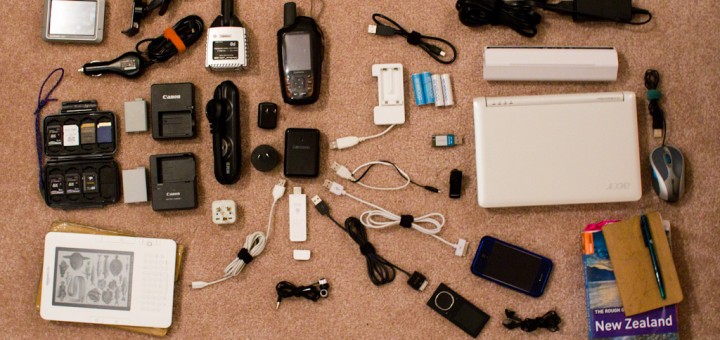
Products, accessories, cables and Adapters required to travel with Technology.

The devices, accessories, chargers, cables and adapters we brought on our trip. (cameras & lenses excluded.)

What to bring?

Part of my problem is that each of the technology items I travel with are excellent at a single thing, so I end up carrying many single-use items like a dedicated GPS or a standalone MP3 Player.  What follows is a breakdown of the items I brought with me on our two-week holiday trip to New Zealand, and an assessment of  how everything worked out and how I might do it better next time.

Cameras: This  includes the cameras themselves, and a small collection of lenses we share between two cameras.  For this trip, we brought 4 lenses for our Canon Cameras: Canon EF-S 10-22mm F3.5-5.6 Wide Angle Zoom Lens, Sigma EF 30mm F1.4 Midrange Prime Lens, Canon EF 100mm F2.8 Prime Macro Lens, Canon EF 70-200mm F4L Telephoto Zoom Lens.  (The majority of our photos were taken with the 30mm Prime which is excellent and sharp, and the 10-22mm Wide which continues to be soft and disappointing.)

Beyond the Cameras and Lenses, we brought enough memory cards such that we did not need to download and reuse them on the trip.  (A total of 128gb in SD Cards of capacities ranging from 4-32gb stored in a sturdy Pelican case).  This was more than enough storage, especially due to poor weather which limited our shooting.  We also brought a spare battery for both cameras, and the charger for each camera since they are slightly different.  We also carried a lens cleaning pen, and a Mini USB cable to download photos at night.

Geotagging: Beyond the photos themselves, I enjoy GeoTagging almost all of my photos.  This associates an exact location with each photo, allowing you to see where each photo was taken on a map.  Since very few cameras actually include a GPS unit, the main way to do this is to carry a handheld GPS unit wherever you go which records your location every few seconds as digital breadcrumbs, called a Tracklog.  Later, a software program on the computer can compare the timestamp of each photo you took that day to the Tracklog to determine exactly where the photo was taken.  This works best with a high-precision GPS that has excellent battery life.  In my case, I use the Garmin GPSMAP 62s, which is extremely accurate, reasonably lightweight and also has the ability to show detailed topographic maps of your current location.  I made sure to download the high resolution Topo Maps for all of New Zealand before we left home, which prevented us from having to buy costly maps in preparation for our hikes.

Ofcourse, another device means additional accessories.  The Garmin GPS uses standard AA Batteries, which would be great, except I needed two batteries per day.  To achieve this knowing that we wouldn’t be able to charge them every night, I needed 6 batteries in total and a compact charger.  I use the excellent Sanyo Eneloop rechargeables to save money and I found an Eneloop-branded charger on Amazon that charges two batteries in 6 hours from a USB port.

Auto GPS: Beyond the Handheld GPS which recorded tracklogs and went with us on hikes and walking around town, we brought a dedicated Automotive GPS with “Routable” maps of New Zealand.  We learned travelling in the UK and Ireland that a GPS can save incredible amounts of time and frustration fiddling with maps and trying to keep track of where you are and where you are going.  We continue to use a 3 year old model, the Garmin Nuvi 200 because it still works fine and accepts current maps for all over the world.

It includes a suction cup mount to attach it to the window and as expected, it requires a proprietary car charger that plugs into a serial port.  It is particularly bulky, and frustrating as the device uses a USB port, but refuses to charge with anything other than the special charger.

Phone & Entertainment: Another set of gear came with us to help pass the time and serve other roles.  We each brought an MP3 player to help with the long flights and provide variety while driving.  I brought my unlocked iPhone so we could buy a SIM card if we liked to make reasonably priced calls.  Amy also brought her Kindle, as it is much more compact than the stack of paperbacks she used to travel with.

All four of these devices charge off of a USB Port, but all but the vintage iPod Shuffle  have proprietary connectors.  (The iPhone and Zune are inexcusable, but the Kindle should be commended for using the standard Micro USB cable.)

Laptop: To back-up our photos, entertain me on the flight, and watch a couple movies, we brought an Acer netbook computer which is extremely small, and I was able to upgrade it’s hard drive to a whopping 500gb.  I put 100′s of movies on the computer before leaving home including a couple of Christmas movies.  Even with it’s modest Atom CPU, it was able to play standard definition movies, browse the web or using Google Voice to call our families.  Backing up photos was a little sluggish as Adobe Lightroom does not do well on slower machines, and tagging/reviewing photos was almost unbearable.  A couple times I tried to develop a photo, but this was too slow to recommend.

The laptop was one of the worst offenders in terms of bulky accessories.  The Power Adapter is very large with an unnecessarily long cord, the extended battery gave us 8 hours of battery life but is very bulky and heavy, the mouse is nice to have but additional bulk, since it lacks integrated bluetooth we had a USB Bluetooth adapter, plus a Bluetooth headset and charger to make phone calls.

What happened?

There are a variety of problems at play here.  As noted, most small consumer electronics have settled on USB to charge, but at this point, each one uses a different cable to connect on the device end:  Kindle uses a MicroUSB connection, iPhone and Zune use a proprietary connectors, my old iPod Shuffle uses the larger standard USB connection.  The proprietary connectors are caused by the manufacturer’s desire to sell accessories that would not be practical with only the 4 wires contained in a USB Cable.  Accessories and replacement cables are likely profitable!  (Even the tiny bluetooth headset charges from the same 5V that the rest of these devices use, although it was sold with a bulky wall adapter which I cut off and soldered to a standard USB Plug.  That’s for a later article.)

As for the Cameras, Laptop and Handheld GPS, each has their own story.

It actually makes sense that the Laptop charger is reasonably large.  It likely has a large AC/DC converter, and this creates heat which needs to be dissipated.  As this laptop is an inexpensive netbook, they sure aren’t motivated to use the smallest or most efficient components, and I’m sure the unnecessarily long cable was inexpensive, and less customers are likely to complain with a cord that is too long than too short.  All that I ask is that they use a shorter cable from the wall to the adapter, since this is the heavier and thicker section of cord, or put the plug right on the adapter itself.

Why two cameras from the same manufacturer need a different battery is excusable.  My camera added video recording feature which can use a lot of power so they used a larger battery.  That said, there is no reason they couldn’t make a taller battery for my camera which uses the same connection to the charger as her older battery.  One less charger would be a tremendous savings.  Further, I would accept a slow charge over a USB connection.  Since both cameras include a USB port, they should offer the ability to trickle-charge the battery overnight when plugged in.  This woudl allow me to leave both chargers at home.  (I suspect this is not offered due to concerns of overheating the battery, a charging battery leaking inside the camera, or the few additional components they would need to put in the camera to make it work.)

The Handheld GPS is the most forgivable of the bunch.  It relies on standard AA batteries.  A built-in battery would be a mistake since you cannot replace it while on the trail, and proprietary batteries would be more expensive for customers and would likely still require a separate charger.  Again, I think it would be a great feature to allow slow-charging of the AA Batteries when connected to a powered USB source, but this is a little less expected of a niche product than a mainstream product like a camera.

Next Time…

In the long term, we may see the situation improve as the European Union has pressured phone manufacturers to standardize on MicroUSB chargers. (right in the image below)  I suspect that this will continue beyond phones to influence all consumer electronics devices (Mp3 players, bluetooth headsets, GPS devices, E-readers) as economies of scale should make it the cheapest charger on the market, or device manufacturers may decide that they don’t need to include a charger if customers already own one.  I can’t wait for the day where a single cable can sync and charge all of my devices!

If I can’t have a single cable which works for everything, a smaller step manufacturers can take quickly is to include shorter cables with their devices.  Most customers would be happy with a 12″ cable, and I actually got a cable of this length with a recent portable hard drive purchase. I would love to have even shorter 3″ cables for each device, but anything shorter than 2 meters is an improvement!

While I wait for more devices to follow the same standards, I have called out a few changes I can make next time:

  • Either buy a third camera battery and leave the chargers at home, locate a universal charger for multiple camera battery types, or upgrade one of our cameras such that they use the same battery and charger.
  • Leave the 4-outlet USB adapter at home.  It worked great for charging many devices off a single outlet, but I could just as easily charge them off the many USB ports on the laptop.
  • Replace the 4-electrical outlet splitter with a much more compact splitter.  It is really useful to turn one outlet into two, but creating four is rarely critical.
  • Upgrade to a slightly larger, more powerful laptop, and leave the second battery at home.  The soon to be released Lenovo x120e with a 11″ screen (399$) looks like a great option for less than half the price of the new 11″ Macbook Air.  I don’t need a second battery, since in-flight entertainment coupled with sleeping medicine makes a 13 hour flight turn into a movie with dinner, sleep time, then a second movie with breakfast.  (When we needed to use the laptop during the trip it was for short bursts of time.  We were able to recharge it in a hotel, backpacker or in the car before it was depleted.)  P.S. An Included bluetooth adapter would eliminate another dongle.
  • Consider leaving the MP3 player behind and relying on the phone for music.
  • Explore using GPS software on a smartphone instead of a dedicated Auto GPS.
  • Download travel guidebooks for the Kindle (or smartphone) and leave the paper guidebook at home. (If this works well, one of these Moleskine Notebook + E-reader cases would be a great travel setup.)

Overall, I am happy with the equipment we brought and the optimizations we made before we left home.  That said, this was a timely opportunity to review what worked well, what didn’t, what we used a lot and what we could have left at home.

The National Park Checklist

October 11th, 2009

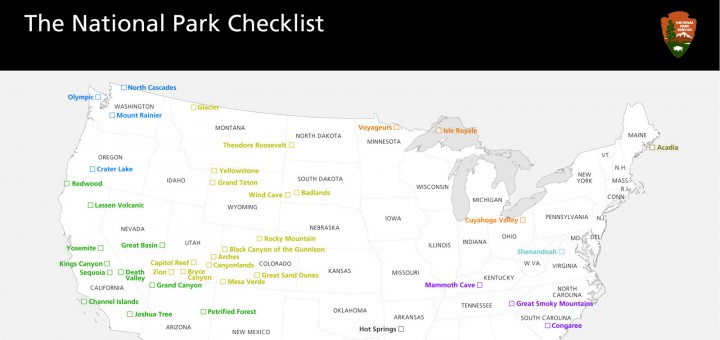
I worked on Amy’s birthday present for about a week, using source material from the National Park Service to create a detailed map and checklist of the 58 National Parks administered by the National Park Service.  We have said that it is a goal to visit all of the National Parks, and now we have a way to keep track!

I tried a few ways to keep track, including a small map with a list of parks that you check off in a separate list below, but I thought it would be more fun if you physically “x” off the parks right where they exist geographically on the map.  I started with this map that contained small dots at each site, and a simple text label.
From there, I removed everything but the 58 actual National Parks, put a checkbox where the dots were, and I color-coordianted the text and boxes to the 9 National Park Regions described in the Passport to your National Parks cancellation book.

To finish it off, I added the standard black National Park Header, and an alphabetical list beneath the map which allows you to record when you first visited the park.

I had initially designed it to be printed on our 13×19″ capable Canon Pixma Pro 9000 Inkjet, but decided to try Costco, which will print a 20×30 print for just 8.99$.  I found reaosnably priced 20×30 frames at Ben Franklin, and I found really convenient adhesive foam core in conveniently enough, 20×30 pieces for 6$ a Michaels.
I am really happy with the final result, which looks really classy in the black frame.  It served as a great conversation piece during Amy’s birthday party, althought we still need to check-off the 11 parks we have visited together.  And, I think she liked it!

The story behind the glossy National Park Brochures

October 5th, 2009
In traveling parts of the United States during the family road trips of my teenage years, the maps and brochures from the National Parks were always interesting to me.  They were of consistently high quality, contained interesting information, arresting photos and featured detailed maps with were both accurate (like the USGS topo’s I had some familiarity with) and had a level of finish quality and artistry that draws you in.
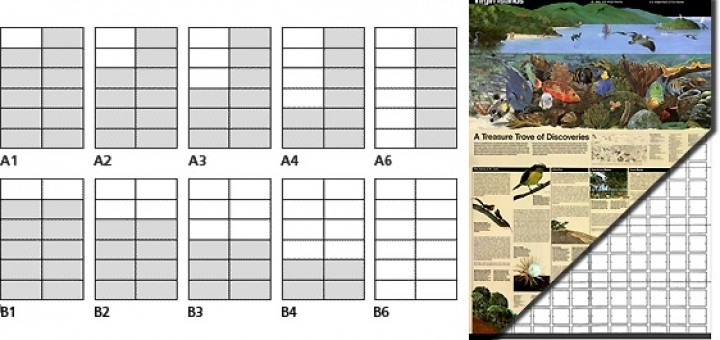
The high quality brochures are not a coincident, they are the result of a long-standing commitment “to create media that effectively communicates National Park Service messages to the public.”  It turns out that “since 1977 the designs of all new brochures have been based on the ‘Unigrid System’ format, created by designer Massimo Vignelli in collaboration with” the park service.  The design only offers sizes which can be printed and cut to evenly divisible sizes based on the large sheets of paper they order for publishing.  I believe that the largest map they produce (B6 in the image below) is 1/4 the size of the paper they use.  Thusly, B4 is 1/6th, B3 is 1/8 and so forth.
The park service offers detailed guidelines for developing literature based on their strict but effective grid system.  They also do most of their high-end mapping and brochure design in a single central office in Harper’s Ferry.

Revised map of Glacier Bay

A specific in-depth article by the National Park Service describes the creation of a new National Park Brochure for Glacier Bay National Park. The article calls out that to make the map, their team collected ”input from staff at the park”  They further went on to describe their research into the primary usage for this map: ”Ninety five percent of visitors to Glacier Bay arrive on cruise ships, never set foot ashore, and are older than the general population of park visitors—thus, large map type is a design necessity.” They also call out “observing visitors using the map”.  Further, the map was not made by just one person, but “a collaborative effort between a writer, graphic designer, and cartographer”. 

It is interesting to see how the project managment of a detailed map is so similar to the process we use in building software.  Research, planning, development, research and refinement are the same steps we follow.

I also learned more through this article about the purpose of each side of the maps that they create.  “The front side of the brochure, which includes the cover, is generally devoted to introducing the park and outlining broad interpretive messages by means of photographs, illustrations, text, and the occasional small thematic map. The second side of the brochure, containing practical visitor information including the map, is more subject to change.”  I did not realize that they deliberately separated the content by sides based on the likelyhood that the information would need to be updated.

Further Thoughts:

  • Since the park service is a government agency, everything they do is in the public domain.  They offer the illustrator/photoshop files for all of the national park system maps free to download.
  • A review of the Unigrid system.
  • I am amazed, but I cannot find anyone on the web that specifically collects national park maps/brochures.  I thought someone out there collected everything.

The History of the National Park Service

October 2nd, 2009

I love the National Park Service.  The locations they administer are almost always of great natural beauty or historical interest, and the facilities they administer within their parks are well managed, clean, and informative.  The people work in the parks are intelligent and well informed, and the literature and signage is consistent and well implemented.

The history of the National Park Service is very interesting.  It was the first federal reserve system in the world of it’s kind, and it came together through a joint effort between dedicated naturalists like John Muir, and some happy coincidences.  It turns out, the first park, Yellowstone, was set aside as a park on the grounds that it’s inhospitable nature made it useless as a source of natural resources and agriculture, so it may as well be saved as a park.

This history has been painstakingly documented by the famed documentary filmmaker Ken Burns in a new PBS Series which aired this week; National Parks: America’s Best Idea.  The history of the park service is detailed in a 6-part, 2-hour series.  Thus far, we have learned about how Yosemite started out as a precursor to the formal park service, followed by Yellowstone which was dedicated as the first park.  This was followed by preservation of the Yosemite upcountry, Sequoia and additional park areas in California.  John Muir leveraged his growing celebrity and the newly formed Sierra Club to elevate our own Mt. Rainier to National Park status in 1902, making it the 5th National Park in the United States. 

We are only through the first 3 hours, but have enjoyed the series thus far.  It is strictly chronological, which means that the narrative jumps around from time to time, but the resulting program is extremely interesting.  This is only feeding into our desire to visit as many sites administered by the National Park Service that we can, including all 58 National Parks.

National Parks are now defined worldwide as “relatively large area with particular defining characteristics”.  Many other sites are administered by the National Park Service under different distinctions.  A smaller area might be a National Monument.   An area of historical relevance would be a National Historic Park or National Historic Site depending on the size and complexity.  They also administer Rivers, Lakeshores, Seashores, Trails, Parkways, and National Recreation Areas.